



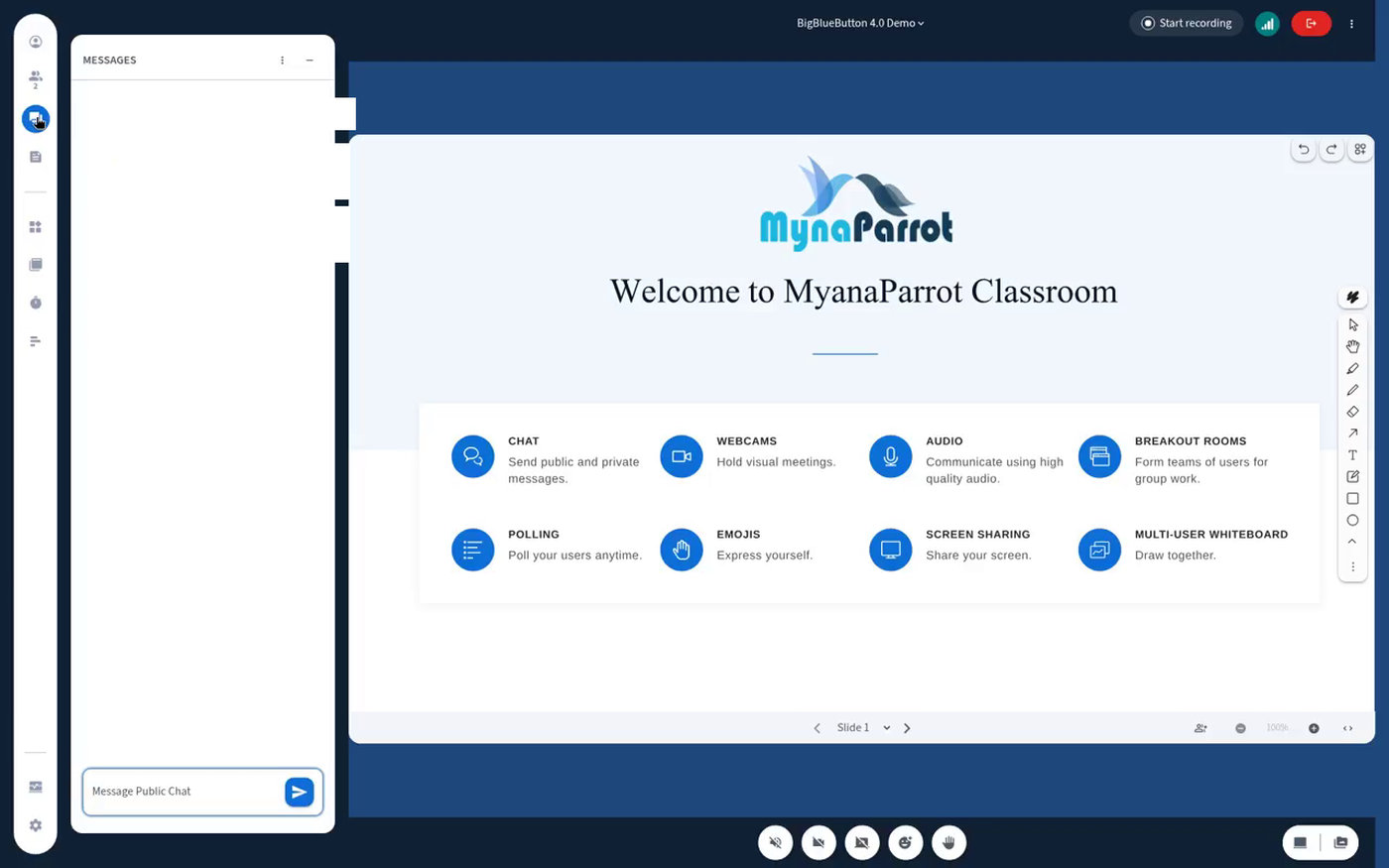
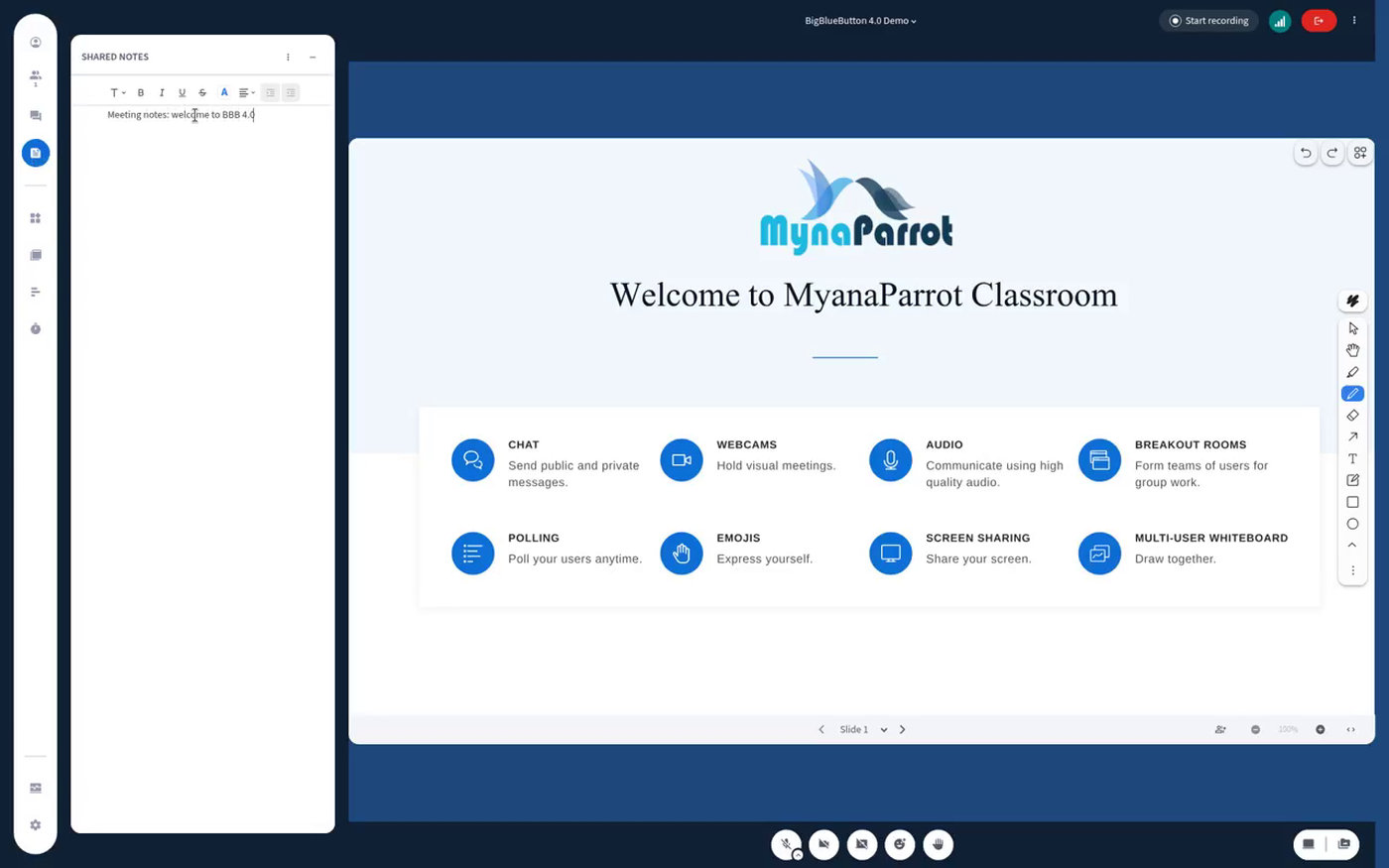
BigBlueButton 4.0 has been released, with version 4.0.0 published in mid-October 2026 and the first maintenance release, 4.0.1, on 29 October. It is the biggest change to the classroom interface in years. Instead of adding more buttons to already crowded menus, the BigBlueButton team has reorganised the client around two simple ideas: everything you share lives in the media area, and every other tool lives in the apps gallery.
In this post we walk through what is new, what stayed the same, why it matters for teachers, students, administrators and hosting providers, and what you need to do to prepare.
What's new in BigBlueButton 4.0
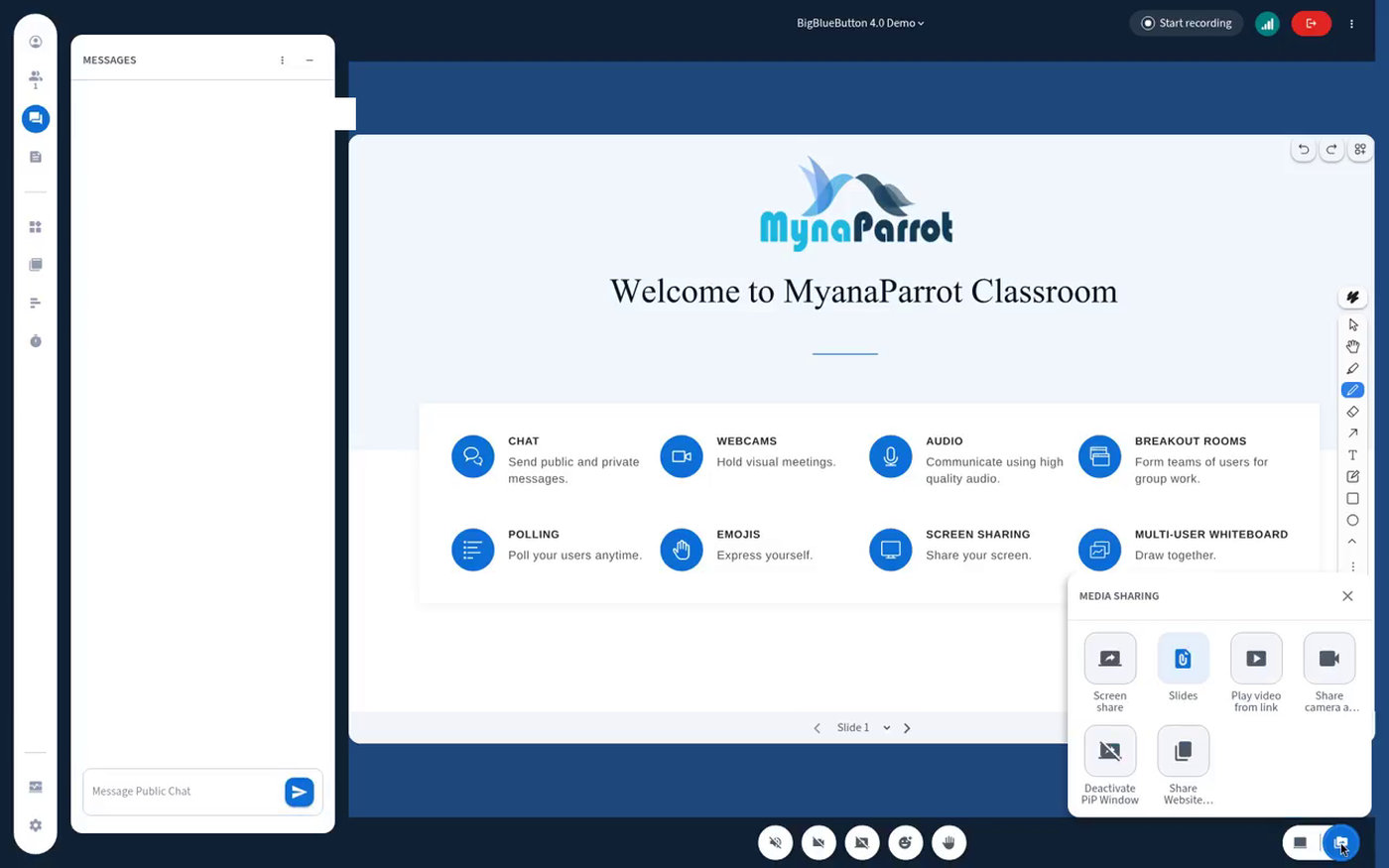
The media area: one place to share
In 3.0, the presenter's Actions (+) menu mixed sharing options with unrelated tools such as the timer. In 4.0, slides, screen sharing, an external video (for example from YouTube) and camera as content (a second camera pointed at a document, whiteboard or object) all go through the media area. Uploaded presentations appear as thumbnails, so you can see what you have loaded instead of reading a list of file names.
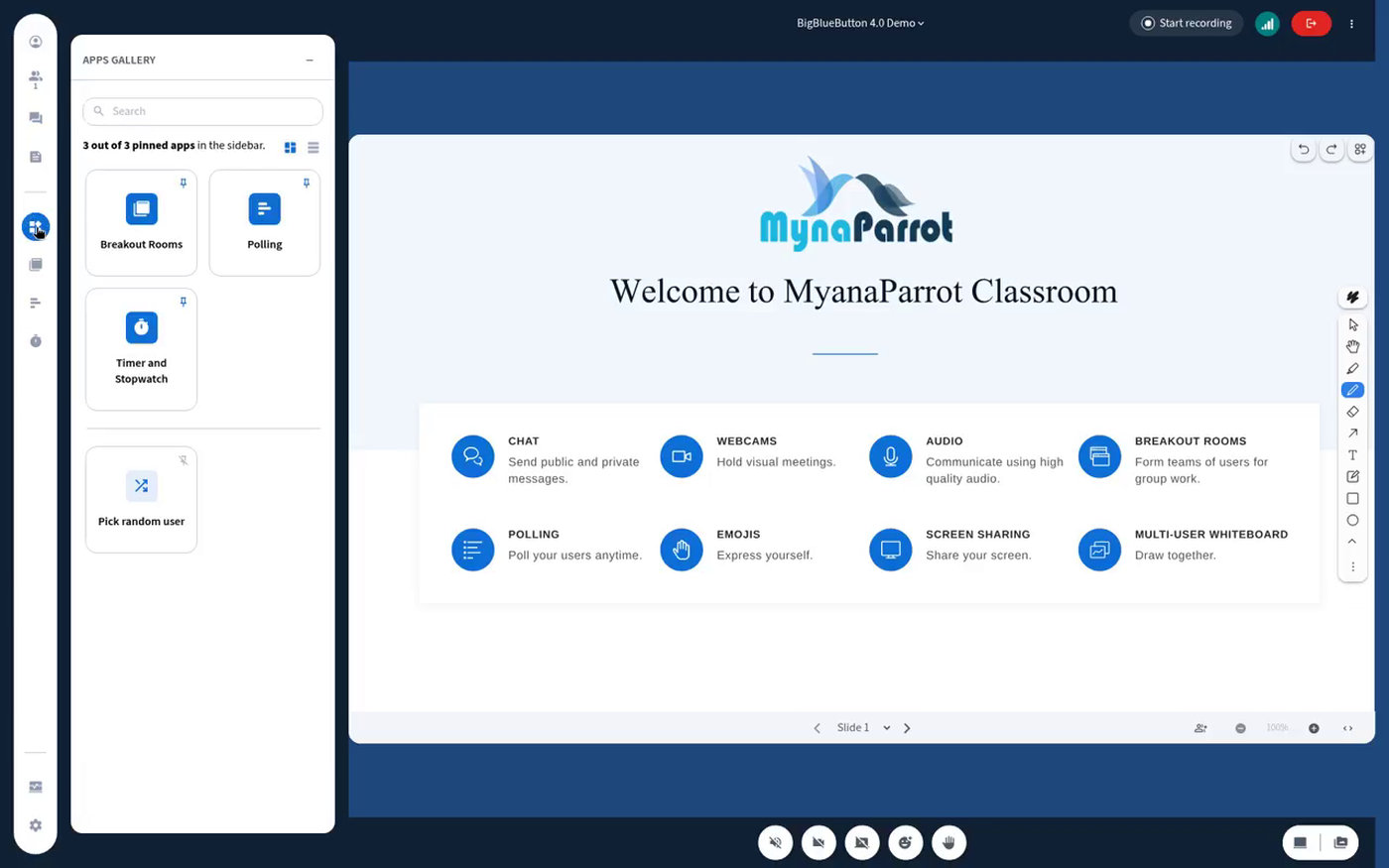
The apps gallery: tools in one place
Breakout rooms, polling and quizzing, the timer and the learning analytics dashboard now sit together in the apps gallery, alongside plugins. You can search the gallery, switch between list and grid views and pin the apps you use most, so they stay on the left side next to the user list and chat.
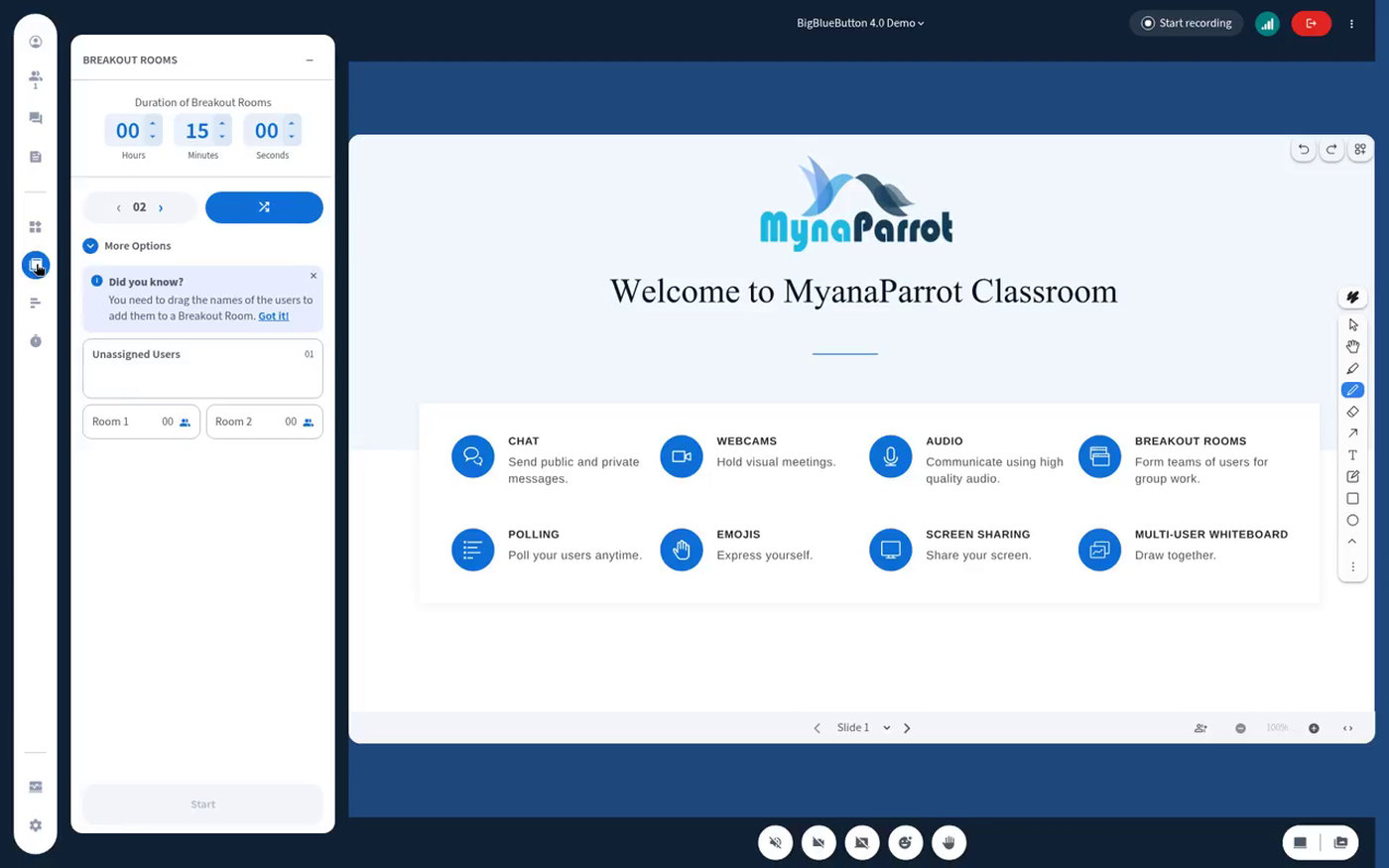
- Breakout rooms now open in a panel instead of a dialog. Drag names from the user list or assign people randomly, set the duration, and send a message to all rooms.
- Polling and quizzing work as they did in 3.0.
- The timer has a new design with one-click presets and quick-add buttons.
- The learning analytics dashboard is more prominent, showing each participant's activity score and their poll and quiz responses.
Minimise the presentation for a grid of faces
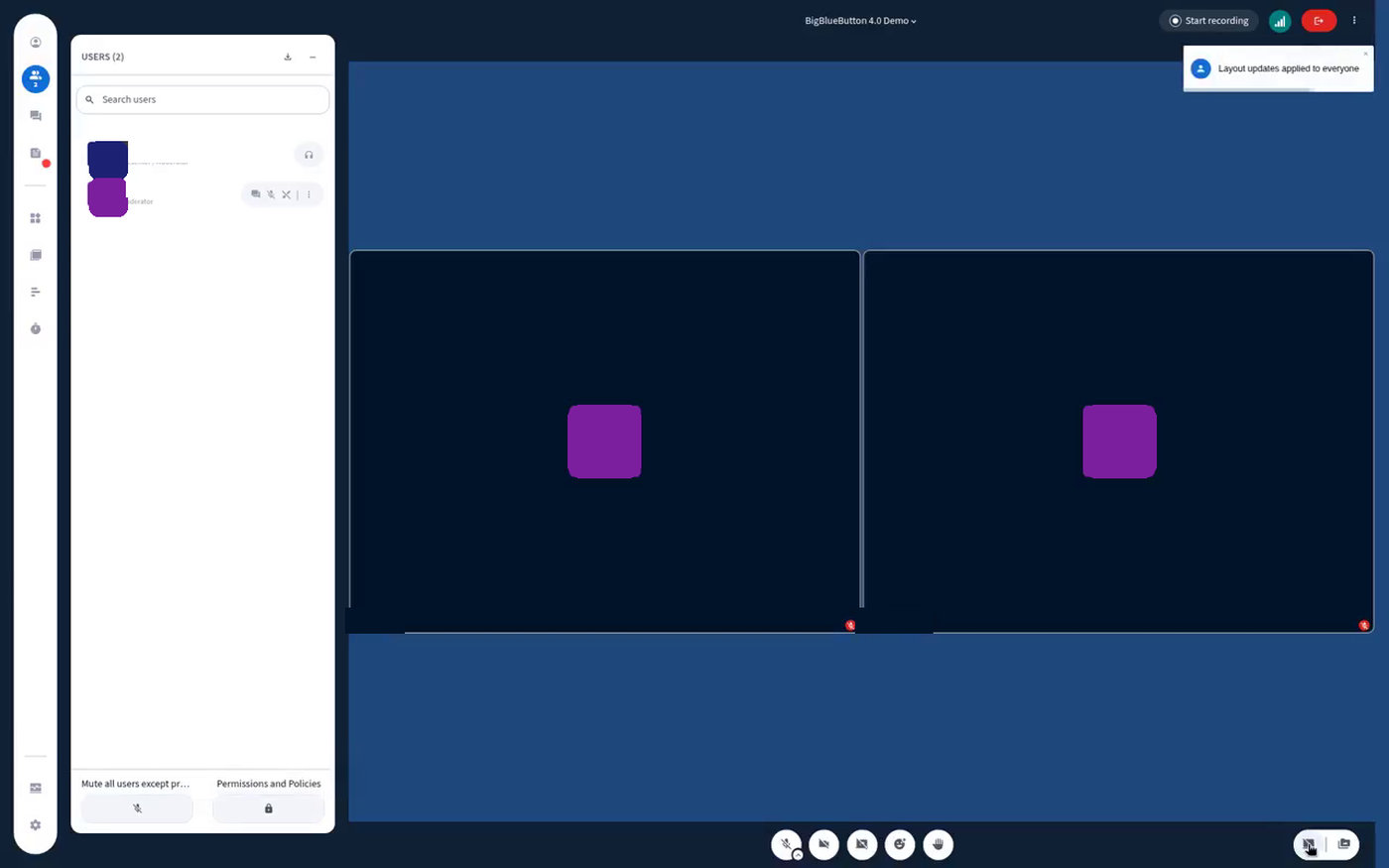
The layout manager is gone. When the instructor minimises the presentation, everyone sees a grid of tiles, with a webcam or an avatar for each person. Restore it to bring the focus back to the content.
Participant permissions that read the way you expect
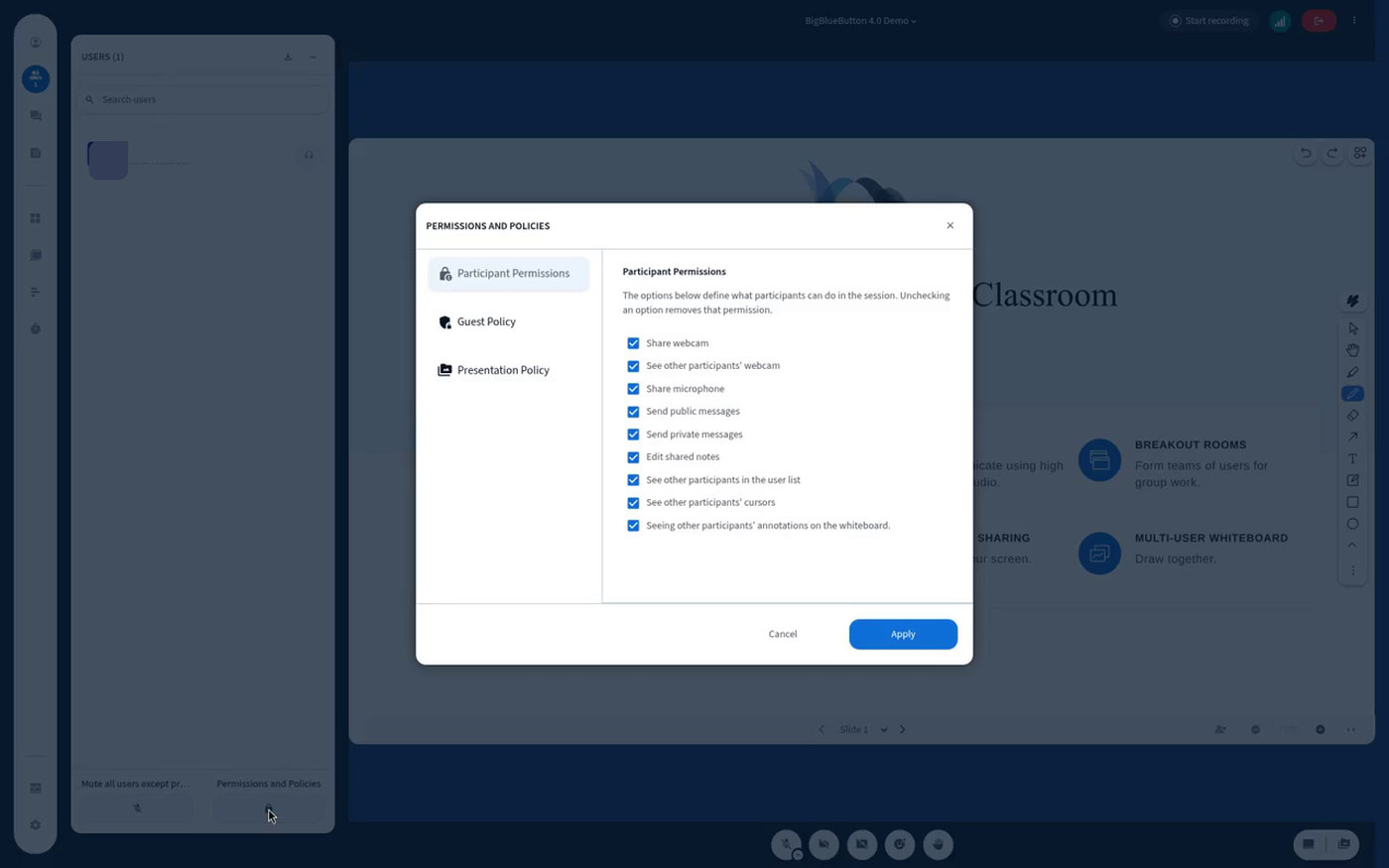
Lock settings are now participant permissions, and the checkboxes are affirmative: a checked box means participants can do it. The same panel holds the guest policy and the new presenting policy.
Presenting modes: assigned, request and approve, or open
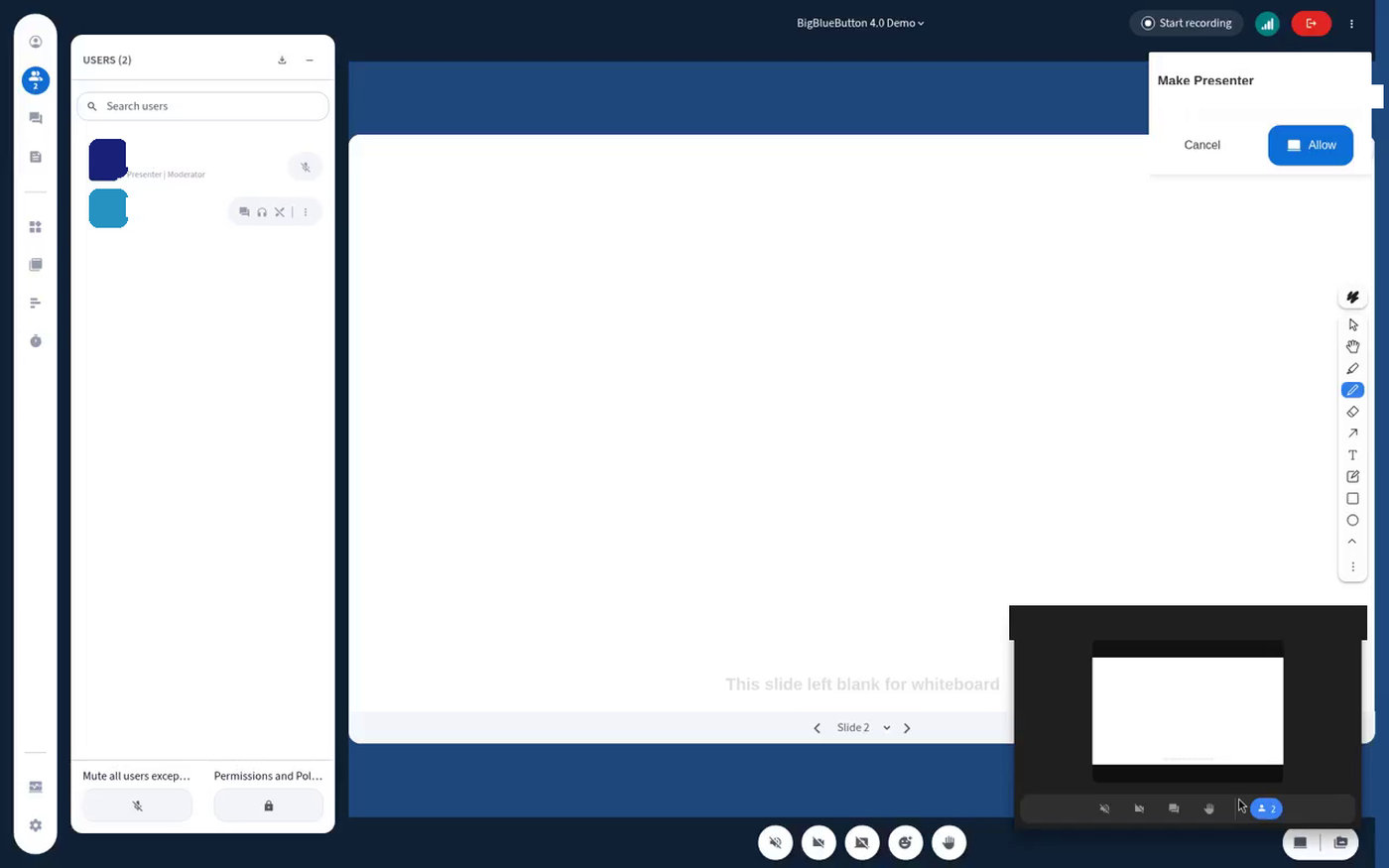
Moderators can keep assigning the presenter role, let participants request to present, or let anyone present at any time. Presenting modes combined with grid view make BigBlueButton work well for staff meetings, group work and student-led sessions. Only one person presents at a time.
Faster guest admission
When arrivals wait in the lobby, moderators can now accept or deny everyone at once, message someone before letting them in, or choose to remember the decision for the rest of the session.
Two panels, better notes and a searchable user list
- Two panels side by side: keep the user list and chat, or any two panels, open together.
- User list search: find someone quickly in a large session.
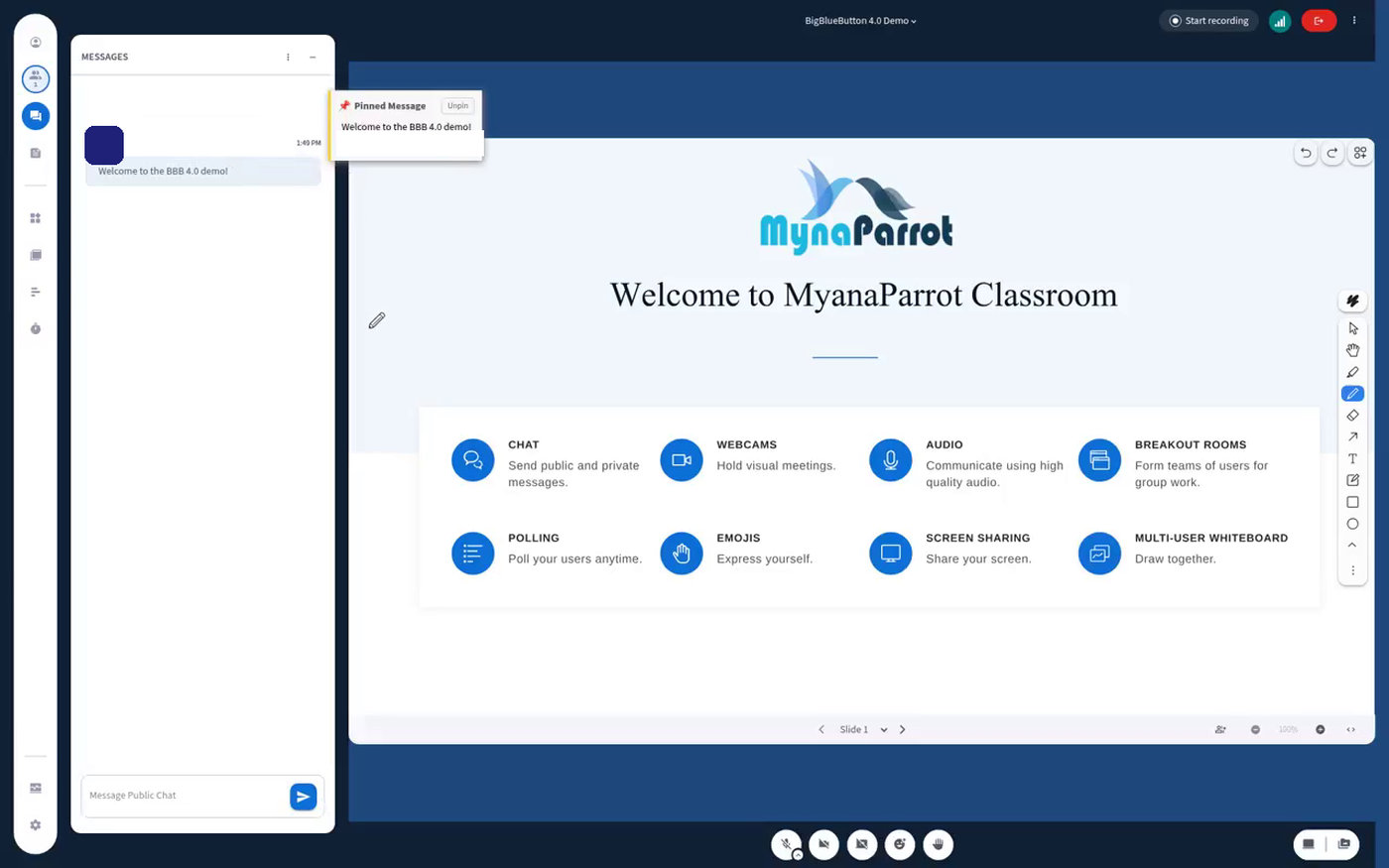
- Pinned chat messages stay at the top while the conversation moves on.
- Shared notes use a new editor with slash commands, headings, code blocks and tables, and much better pasting from tools like Google Docs.
- Settings moved to the bottom left, with a dedicated Audio tab offering standard filtering, optional advanced noise filtering (if your administrator enables it) and original audio for music.
- Automatic light/dark theme that follows your operating system.
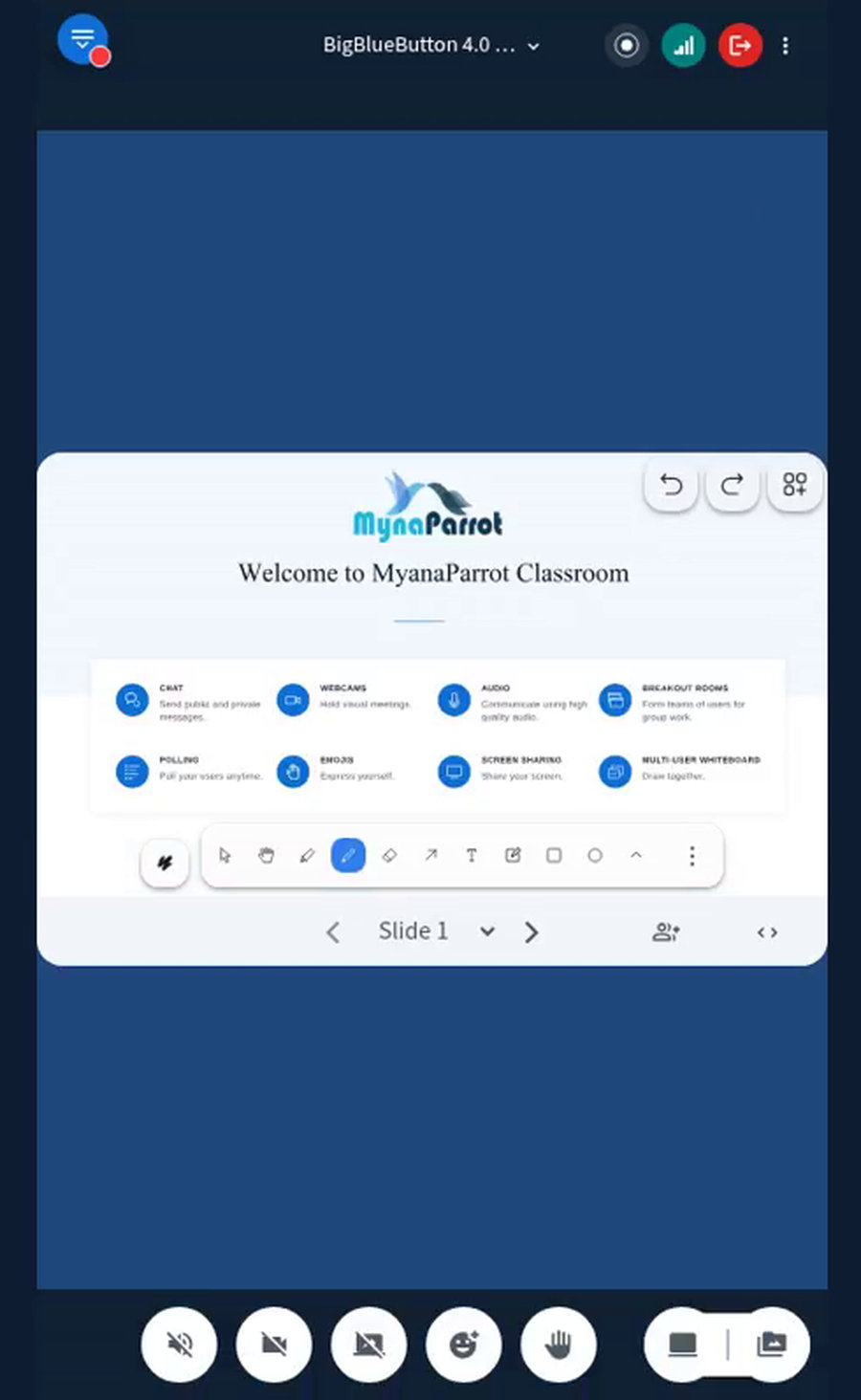
A reworked mobile layout
On phones, webcams are paginated with swipe gestures, the action bar is more compact, and in landscape orientation cameras and the presentation sit side by side.
What stayed the same
The whiteboard controls, presentation controls and the bottom bar (audio, webcam, screen share, reactions, raise hand, recording, connection status and leave) work as they did in 3.0, so returning users will feel at home.
Why it matters
- Teachers: fewer menus to hunt through, a quicker breakout setup and a clearer view of participation through the learning analytics dashboard.
- Students: they can ask to present, use chat and the user list together, and get a much better experience on phones.
- Administrators: plain-language permissions, bulk guest admission and new settings to decide which apps and buttons appear.
- Hosts: a new platform base (Ubuntu 24.04, Java 21, Node.js 24) and a fresh-install upgrade path that needs planning.
How to upgrade or prepare
- Plan a new server. According to the official install guide, BigBlueButton 4.0 runs on a clean, dedicated Ubuntu 24.04 64-bit server, and upgrading directly from 2.6, 2.7 or 3.0 is not supported. Set up a new server and migrate your existing recordings to it.
- Check the requirements. For production, the guide recommends at least 16 GB of memory, 8 CPU cores, the listed firewall ports and a valid SSL hostname.
- Review what's new and the known issues. Read the new features page for administrators and the known issues.
- Test your integrations. Before switching production traffic, check your LMS or website integration, recordings and any plugins on a test server.
- Brief your teachers. Share the official What's New in BigBlueButton 4.0 guide, which includes a ten-minute video tour.
FAQ
Is BigBlueButton 4.0 a stable release?
Yes. Version 4.0.0 was published as a full (non-beta) release in mid-October 2026, followed by 4.0.1 on 29 October 2026.
Can I upgrade my 3.0 server in place?
No. The official guide says direct upgrades from 2.6, 2.7 or 3.0 are not supported. Install 4.0 on a clean Ubuntu 24.04 server and migrate your recordings.
Where did the lock settings go?
They are now participant permissions in the user list. A checked box means participants are allowed to do it.
Where are breakout rooms, polls and the timer?
In the apps gallery. Pin the ones you use most so they stay on the left side.
Do students need to learn a new interface?
Only a little. The bottom controls for audio, webcam, screen sharing, reactions and raise hand work as they did in 3.0.
Moving to BigBlueButton 4.0 with MynaParrot
MynaParrot hosts and supports BigBlueButton for schools, universities and training companies. If you would like help planning a move to 4.0, testing your integration or running your classes on a managed server, contact our team or try it for free.
Running several servers? MP Board shows live rooms, attendance and meeting history in one free dashboard. Our free BBB Toolkit helps you look up error codes, test rooms and check API checksums. These tools are for BigBlueButton; MynaParrot is not affiliated with BigBlueButton.
